Advanced Form Spam Protection for Contact Form 7 – Complete Guide
Stop spam. Keep real leads. Free forever.
What This Plugin Does
Advanced Form Spam Protection adds multiple layers of spam detection to your Contact Form 7 forms (also supports Gravity Forms and Elementor Forms). It blocks bots and spam submissions automatically while making sure real visitors — your potential clients — always get through.
Requirements
- WordPress 5.0 or higher
- PHP 7.2 or higher
- Contact Form 7 (installed and activated)
Step 1 — Installation
👉 Download Advanced Form Spam Protection (Free)
- Click the download link above to get the plugin
.zipfile - In your WordPress admin, go to Plugins → Add New
- Click Upload Plugin and select the
.zipfile - Click Install Now, then Activate
- You will see Spam Protection appear in your WordPress admin menu
That’s it. The plugin starts protecting your forms immediately with the default settings — no configuration required to get started.
Step 2 — Finding the Dashboard
Go to your WordPress admin sidebar and click Spam Protection.
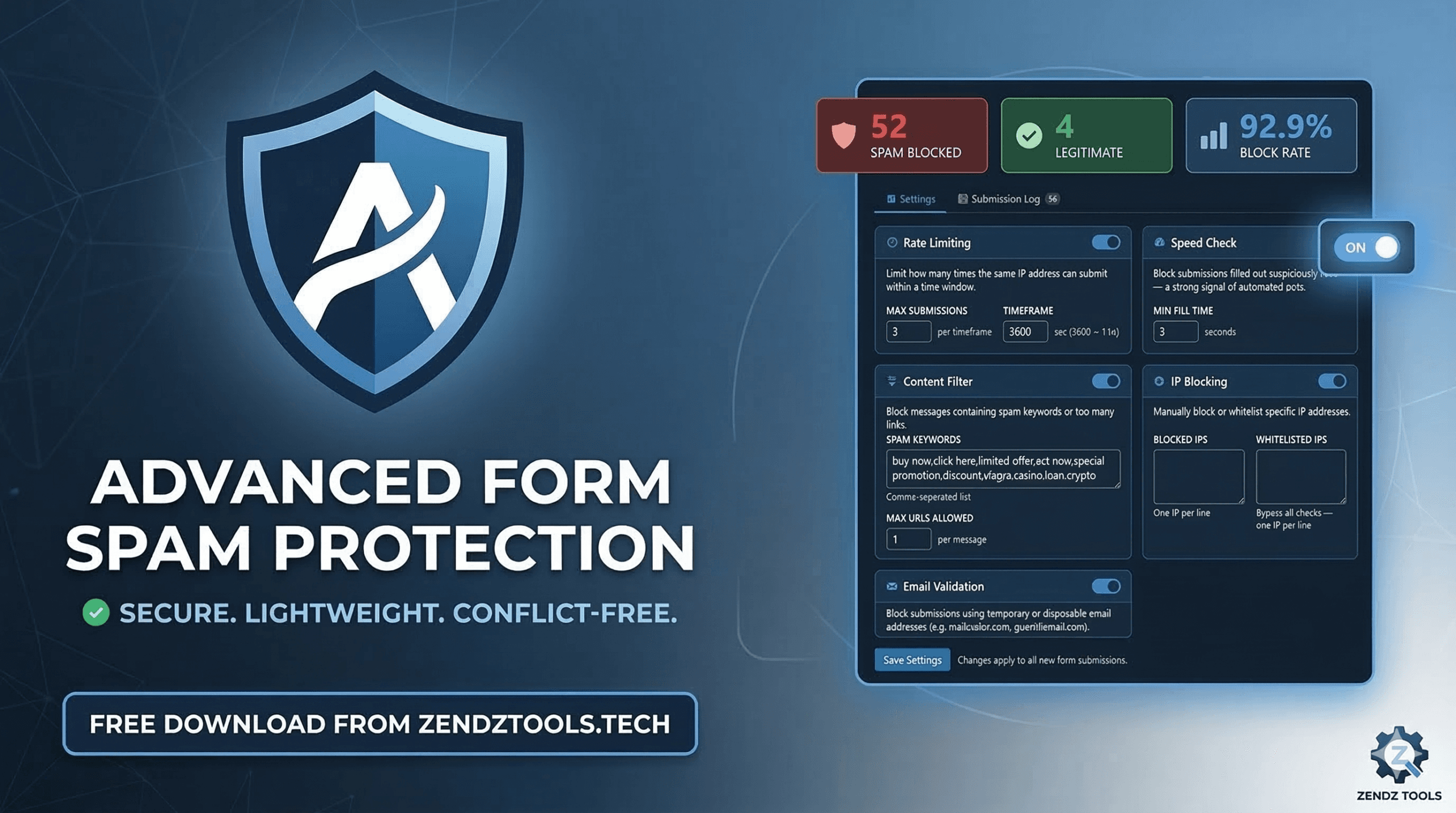
You’ll see three things at the top:
| Stat | What it means |
|---|---|
| Spam Blocked | Total submissions caught as spam |
| Legitimate | Real submissions that passed all checks |
| Block Rate | Percentage of all submissions that were blocked |
Below the stats are two tabs: Settings and Submission Log.
Step 3 — Understanding the Settings
Each protection layer has its own card with an on/off toggle. Here’s what each one does:
🕐 Rate Limiting
Prevents the same person (or bot) from submitting too many times.
- Max Submissions — How many times one IP address can submit within the timeframe. Default:
3 - Timeframe — The time window in seconds. Default:
3600(1 hour)
Example: With defaults, if someone submits 3 times in 1 hour from the same IP, their 4th attempt is blocked.
Recommended for most sites: Leave at defaults. If you run a high-traffic site or expect multiple people from the same office to contact you, increase Max Submissions to 5 or 10.
⚡ Speed Check
Blocks bots that fill out forms in milliseconds.
- Min Fill Time — The minimum number of seconds a submission must take. Default:
3
How it works: When your page loads in a visitor’s browser, a timer starts. If the form is submitted in less than 3 seconds, it’s almost certainly a bot — no human reads and fills a form that fast.
Recommended: Keep at 3 seconds. You can raise it to 5 if you’re still seeing fast bot submissions.
🔍 Content Filter
Scans the message content for spam keywords and excessive links.
- Spam Keywords — A comma-separated list of words that trigger a block. Default includes:
buy now, click here, limited offer, act now, special promotion, viagra, casino, loan, crypto - Max URLs Allowed — How many links are permitted in one message. Default:
1
Important: Only add keywords that would never appear in a genuine message from your clients. Avoid broad words like “free” or “help.”
Recommended: Review the default keyword list and remove anything your clients might legitimately write. Increase Max URLs to 2 if you expect clients to share website links.
🚫 IP Blocking
Manually control which IPs can and cannot submit.
- Blocked IPs — One IP per line. Any submission from these addresses is instantly rejected.
- Whitelisted IPs — One IP per line. These addresses bypass ALL spam checks — use this for your own IP or a trusted client’s IP.
Tip: You don’t need to manually add IPs here. You can block or whitelist any IP directly from the Submission Log tab with one click.
📧 Email Validation
Blocks disposable / temporary email addresses.
Common throwaway email services like mailinator.com, guerrillamail.com, 10minutemail.com, and others are automatically blocked. Real clients use real email addresses.
Recommended: Keep this enabled.
Step 4 — Saving Your Settings
After making any changes, scroll to the bottom of the Settings tab and click Save Settings. Changes apply to all new submissions immediately.
Step 5 — Reading the Submission Log
Click the Submission Log tab to see every form submission — both blocked and allowed.
Each row shows:
| Column | What it tells you |
|---|---|
| Time | When the submission happened |
| IP Address | The visitor’s IP address |
| Form | Which form was used |
| Status | 🔴 Blocked or 🟢 Allowed |
| Reason | Exactly why it was blocked (or “Passed all checks”) |
| Actions | Block or Allow that IP with one click |
Common block reasons and what they mean
| Reason | Meaning |
|---|---|
Submission too fast: 1 seconds |
Bot submitted the form almost instantly |
Rate limit exceeded: 4 submissions |
Same IP submitted too many times |
Spam keyword detected: viagra |
Message contained a blocked keyword |
Too many URLs: 5 |
Message contained more links than allowed |
IP address is blocked |
IP was manually blocked |
Disposable email address detected |
A throwaway email service was used |
Step 6 — Managing IPs from the Log
If you spot a suspicious IP spamming your log:
- Go to Submission Log
- Find the row for that IP
- Click the red Block button — that IP is instantly added to your blocked list
If you see a real client was blocked by mistake:
- Find their IP in the log
- Click the green Allow button — their IP is whitelisted and bypasses all future checks
Tips for Best Results
✅ Do this:
- Start with the default settings — they work well for most sites
- Check the Submission Log weekly to spot patterns
- Whitelist your own IP so your test submissions are never blocked
- Remove any spam keywords that could appear in real client messages
❌ Avoid this:
- Don’t set Min Fill Time above 10 seconds — slow typers and mobile users need time
- Don’t add short common words (like “loan”) as keywords unless you’re certain no client would use them
- Don’t block entire IP ranges — block individual IPs only
Troubleshooting
A real client says their form isn’t working
→ Go to Submission Log, find their submission, check the Reason column. If they were blocked by mistake, click Allow on their IP. Then review which setting triggered it and adjust accordingly.
I’m still getting some spam through
→ Check the log for allowed spam submissions and look at what they have in common. You can add their specific keywords to the Content Filter or block their IP directly.
The plugin isn’t blocking anything
→ Make sure Contact Form 7 is installed and activated. Check that the protection toggles are turned on in Settings.
Download
👉 Download Advanced Form Spam Protection (Free)
Support
Found a bug or have a suggestion? Reach out directly — this plugin is actively maintained and completely free.
Advanced Form Spam Protection v1.0.4 — Built for Contact Form 7 · Also supports Gravity Forms & Elementor Forms